
Learning, Certifying, and Climbing the IT Ladder
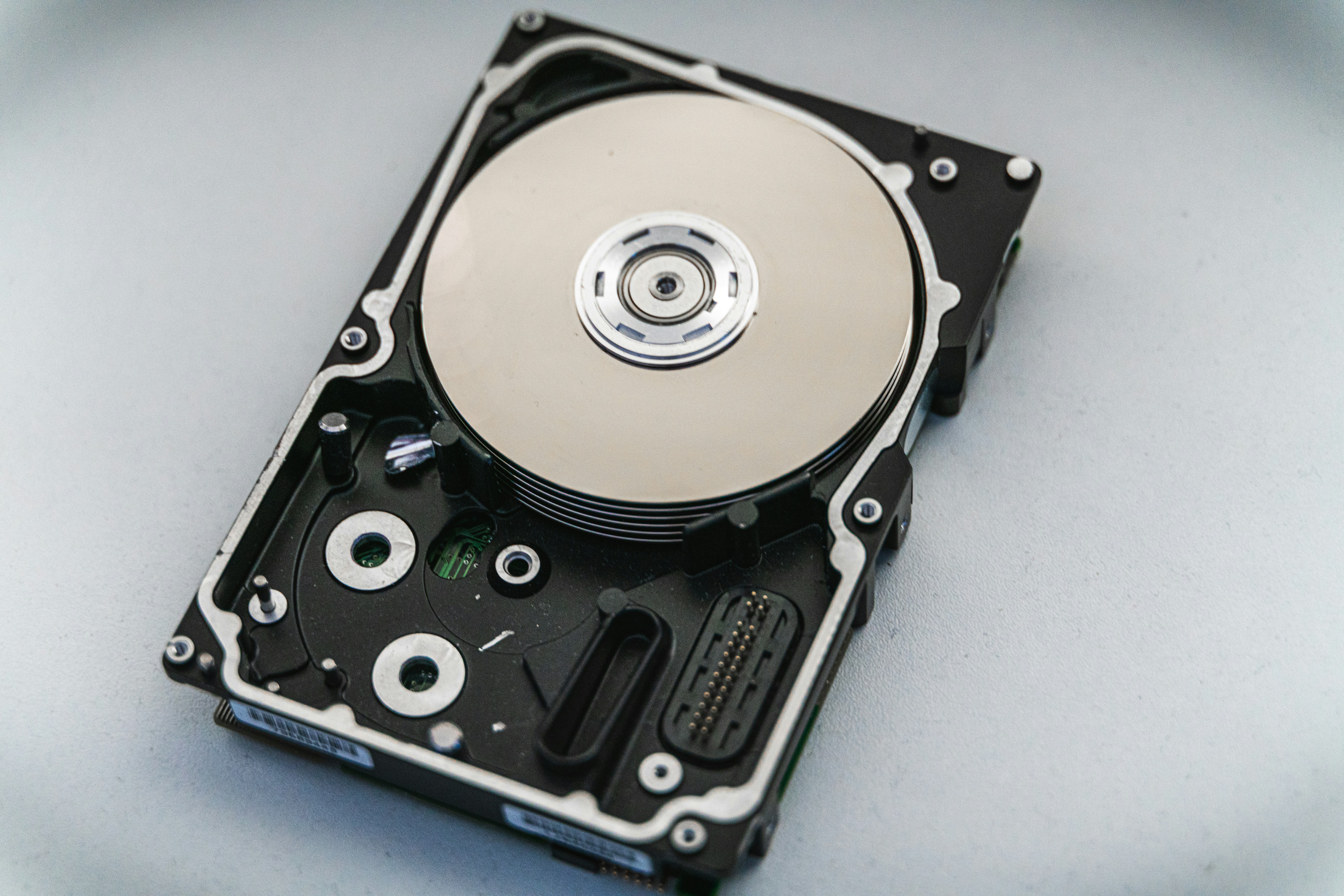
So what actually is a hard drive? Basically, it's where your computer keeps everything long-term — your files, photos, apps, games, your operating system, all of it. Unlike RAM, which forgets everything the second you turn your computer off, a hard drive holds onto your data permanently, even with no power. That's the whole point of it.
Think back to that desk analogy from the RAM post — if RAM is your desk space where you're actively working on stuff, your hard drive is the filing cabinet in the corner where everything actually lives. When you save a document, it goes into that cabinet. When you open it back up later, your computer pulls it out of the cabinet and puts it back on the desk (RAM) so you can work with it again.
There isn't just one kind of hard drive though. Over the years there've been a few different types, and honestly the differences between them are pretty huge when it comes to speed.
HDD stands for Hard Disk Drive, and it's the "old school" type of storage, even though tons of computers still use them today. Inside an HDD there's literally a spinning metal disk (called a platter), and a little arm with a magnetic head that moves back and forth reading and writing data onto that spinning disk, kind of like a record player. Because it's a physical, mechanical process, HDDs are pretty slow compared to newer tech, and they're also more likely to break if you drop your laptop, since there are actual moving parts inside. The big upside though is price — HDDs are way cheaper per gigabyte, which is why they're still popular for storing huge amounts of data, like backups or media libraries.
SSD stands for Solid State Drive, and this is where things get a lot faster. Instead of a spinning disk and a moving arm, an SSD stores data on flash memory chips, kind of like a much bigger, faster version of a USB stick. Since there's nothing physically moving, SSDs are way quicker at reading and writing data, they're more durable, and they use less power. This is why your computer feels so much snappier when it boots up or opens apps if it has an SSD instead of an HDD. The tradeoff is cost — SSDs are more expensive per gigabyte than HDDs, though prices have been dropping a lot over the years.
If regular SSDs are fast, NVMe drives (often called M.2 drives because of their physical shape) are on a whole different level. Instead of connecting through the older SATA cable that HDDs and regular SSDs use, NVMe drives plug directly into a slot on the motherboard and communicate way more directly with the rest of the computer. This cuts out a ton of the slowdown you'd normally get, making them significantly faster than standard SSDs. They're popular in gaming PCs and high-end laptops where speed really matters, like for loading large games or editing 4K video. As you'd probably guess, they're also the most expensive option per gigabyte.
For most people building or upgrading a computer, a good setup is actually a mix — an SSD or NVMe drive for your operating system and the apps you use most, since that's where speed matters most, and then a bigger, cheaper HDD for stuff like photos, videos, or backups that you don't need to load instantly. Knowing the difference between these drive types also matters a lot for the CCNA and IT in general, since a huge chunk of troubleshooting slow computers comes down to figuring out what kind of storage someone's actually running.